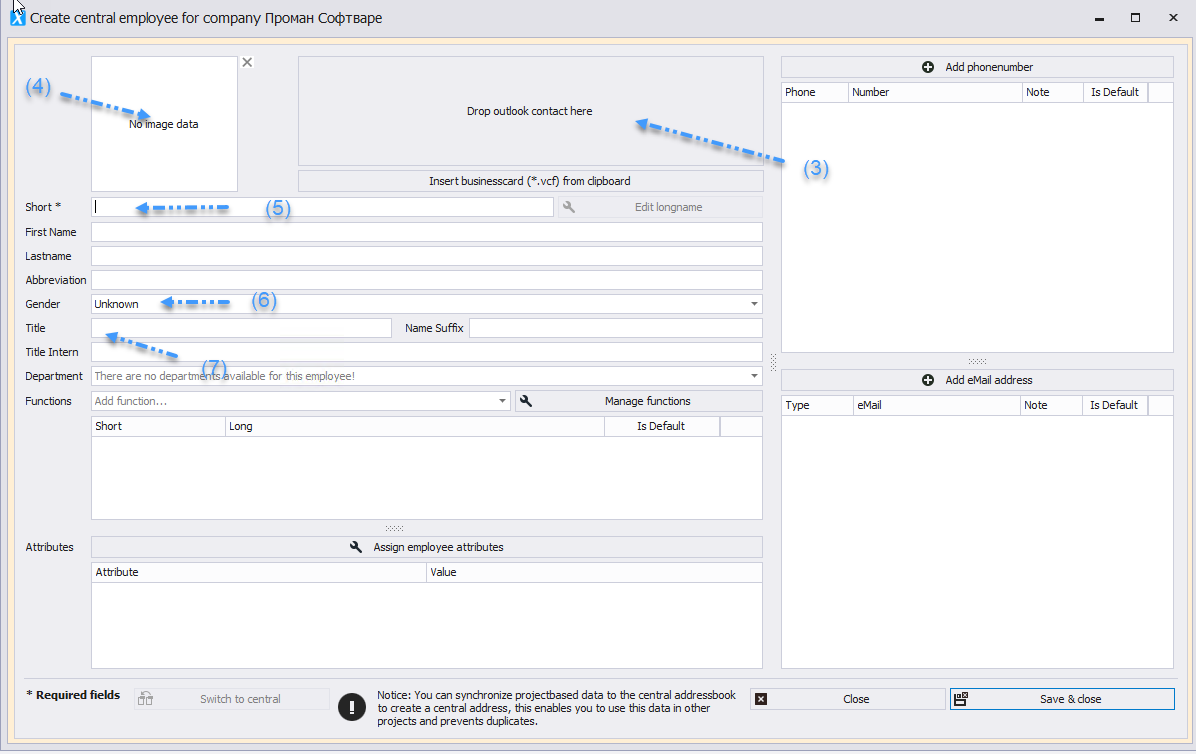
* _Contacts can be imported from Outlook_ via drag and drop\* ([Drag & Drop in Proman: Instructions](https://op.proman.at/projects/proman-besprechungsbericht/wiki/drag-and-drop-in-proman-anleitung)). _Contacts can be imported from a vCard (3)._
* Images can be assigned to the employee via drag and drop\* ([Drag & Drop in Proman: Instructions](https://op.proman.at/projects/proman-besprechungsbericht/wiki/drag-and-drop-in-proman-anleitung)) or by right-clicking through the menu _(4)_.
* Name _Short Form_ – the short form must be unique and can only be assigned once _(5)_.
* _Gender / Salutation (6) can be displayed on the cover page in the distribution list and in report items for responsible persons._
* _Title can be used for the long form (7). This can be displayed in the distribution list and for responsible persons._
 \* Drag & Drop is technically not possible via a remote desktop connection. Please use the clipboard and a .vcf file instead of the drag and drop function. ([Drag & Drop in Proman: Instructions](https://op.proman.at/projects/proman-besprechungsbericht/wiki/drag-and-drop-in-proman-anleitung))
* Departments previously created for the associated company can be selected here via the dropdown menu _(1)_.
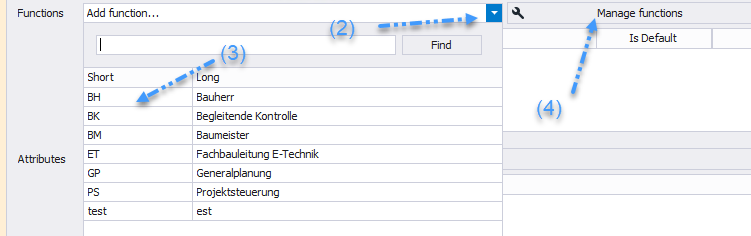
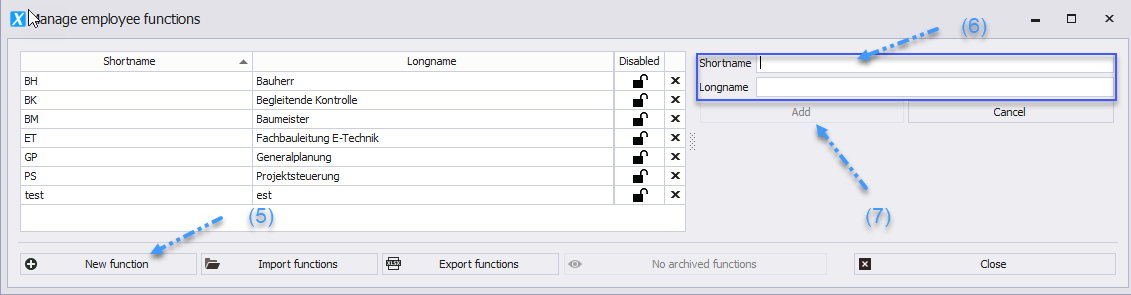
* Functions _(3)_ can be assigned to the employee via the dropdown menu _(2)_. Under Manage Functions _(4)_, new functions with short and long forms _(6)_ can be added with the "New Function" button _(5)_ _(7)_.
\* Drag & Drop is technically not possible via a remote desktop connection. Please use the clipboard and a .vcf file instead of the drag and drop function. ([Drag & Drop in Proman: Instructions](https://op.proman.at/projects/proman-besprechungsbericht/wiki/drag-and-drop-in-proman-anleitung))
* Departments previously created for the associated company can be selected here via the dropdown menu _(1)_.
* Functions _(3)_ can be assigned to the employee via the dropdown menu _(2)_. Under Manage Functions _(4)_, new functions with short and long forms _(6)_ can be added with the "New Function" button _(5)_ _(7)_.

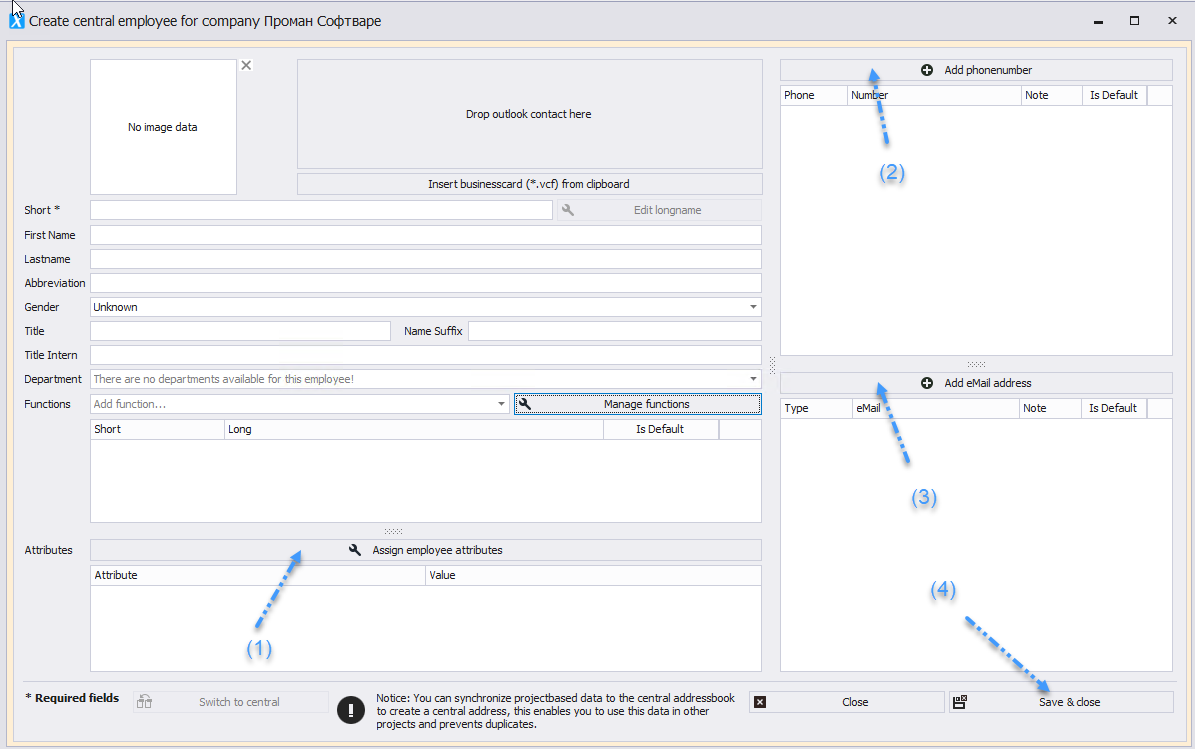
 * Attributes can be assigned to an employee _(1)_. For creating employee attributes, see Chapter 6 Attributes.
* Phone number _(2)_ & email _(3)_ are used for automatic email sending via the local email client (Outlook, Lotus Notes, etc.). The phone number entered for the company is pre-filled for the employee and can be quickly adapted. From the first and last name, the address management automatically suggests email addresses in combination with the entered company email address.
* Click Save & Close _(4)_ to apply the entries.
* Attributes can be assigned to an employee _(1)_. For creating employee attributes, see Chapter 6 Attributes.
* Phone number _(2)_ & email _(3)_ are used for automatic email sending via the local email client (Outlook, Lotus Notes, etc.). The phone number entered for the company is pre-filled for the employee and can be quickly adapted. From the first and last name, the address management automatically suggests email addresses in combination with the entered company email address.
* Click Save & Close _(4)_ to apply the entries.