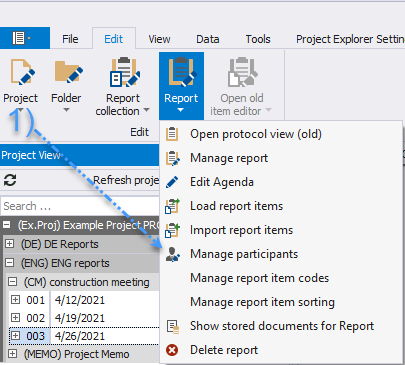
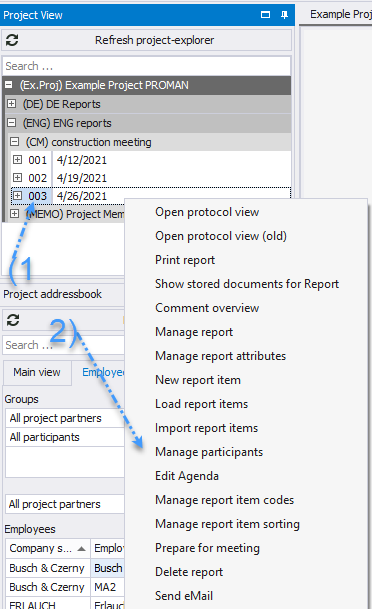
Click on _Manage Participants (1)_ in the report protocol toolbox or right-click on the desired report _(2)_ and then select _Manage Participants (3)_ to edit the advanced settings for participants/distribution list.
 Managing participants consists of three areas:
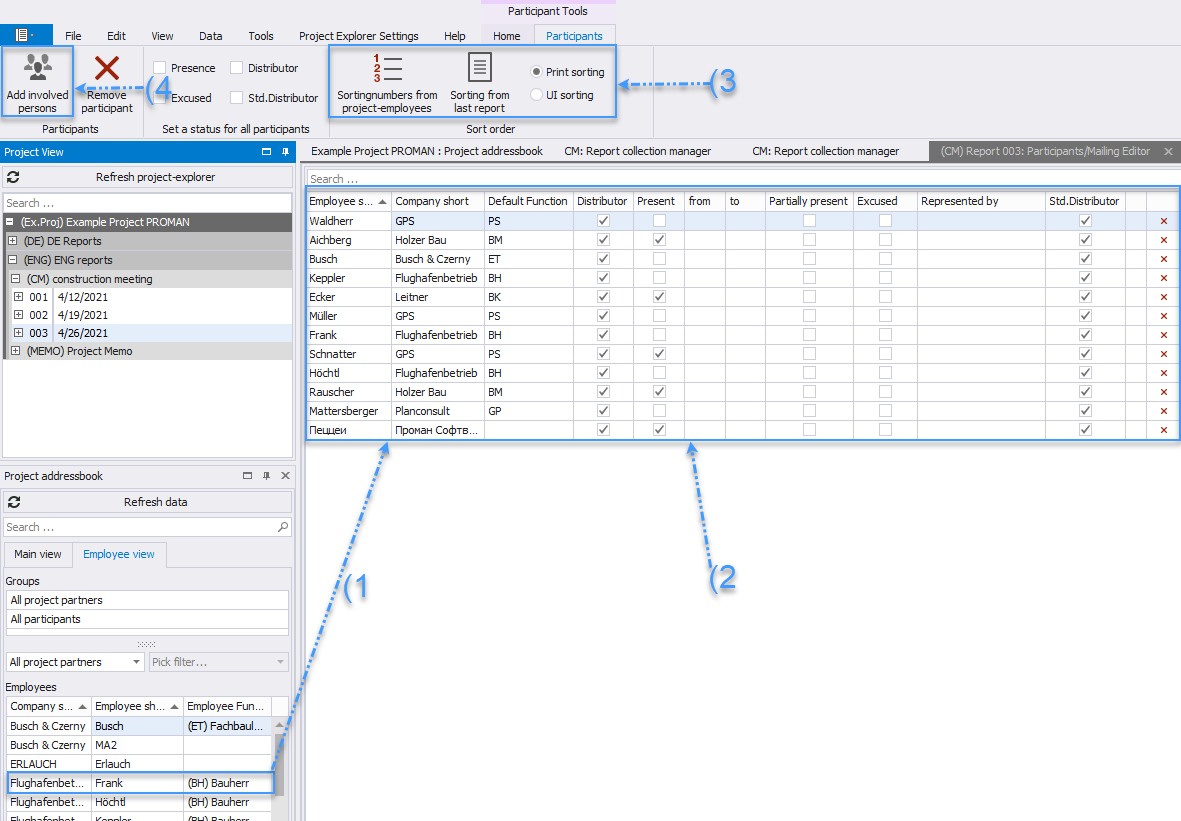
* Project Address Book _(1)_: Drag participants into your distribution list as you did in the protocol view and define their attendance _(2)_.
* Through the toolbox, you can adopt the sorting defined in the project address book _(3) (Chapter 4.2)_ and add affected individuals from Report Items into the distribution list (4).
Managing participants consists of three areas:
* Project Address Book _(1)_: Drag participants into your distribution list as you did in the protocol view and define their attendance _(2)_.
* Through the toolbox, you can adopt the sorting defined in the project address book _(3) (Chapter 4.2)_ and add affected individuals from Report Items into the distribution list (4).
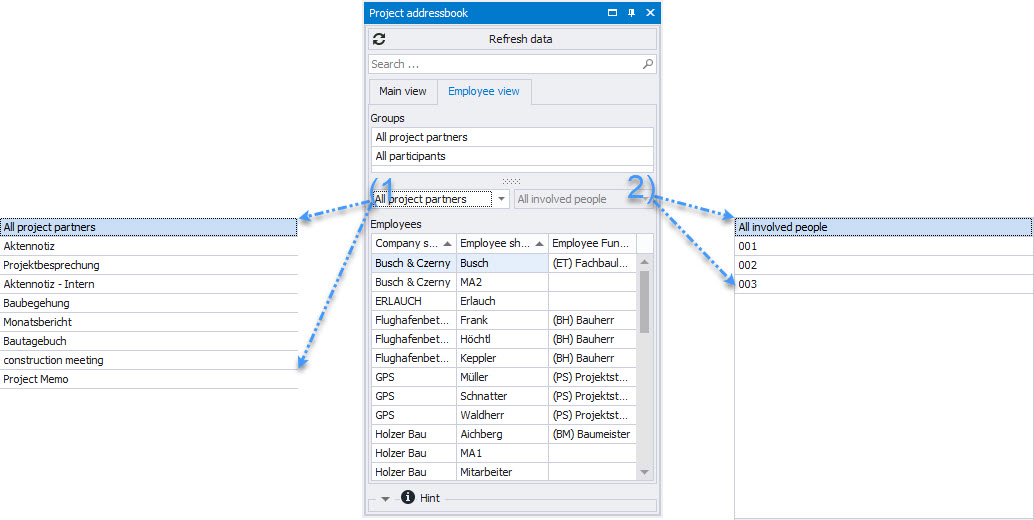
 The project address book can also be filtered by participant/distribution lists.
* Main view: Project partners grouped by company.
* Employee view: Shows all project partners.
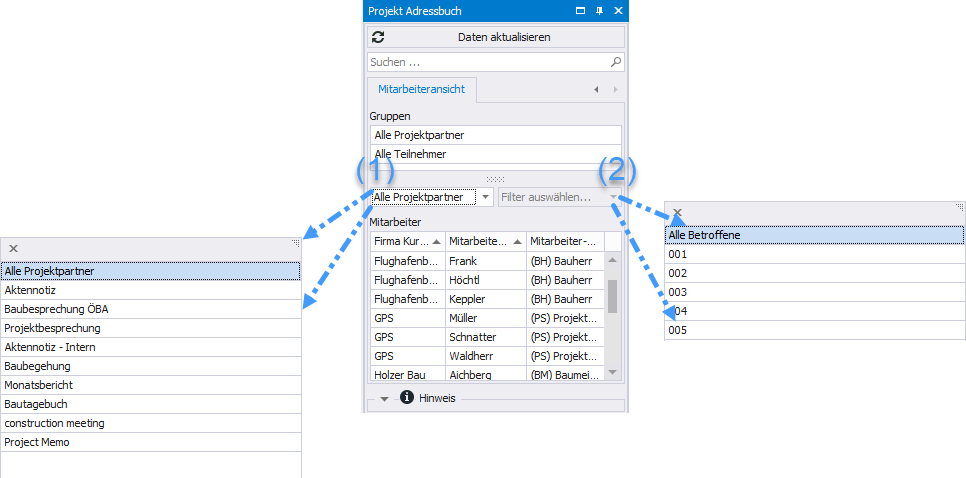
* Filter by all project partners or a specific meeting group _(1)_.
* Further filtering can be done by filtering for a specific report _(2), e.g., all participants of the previous meeting._
* You can also directly find the desired company/person in the search field.
The project address book can also be filtered by participant/distribution lists.
* Main view: Project partners grouped by company.
* Employee view: Shows all project partners.
* Filter by all project partners or a specific meeting group _(1)_.
* Further filtering can be done by filtering for a specific report _(2), e.g., all participants of the previous meeting._
* You can also directly find the desired company/person in the search field.
 * Distribution: Defines the document's distribution group. It is also used for automatic email distribution of the protocol _(1)_.
* Attendance can be added with "Partially Present" and time or replaced by "Excused" _(2)_.
To print these, an appropriate print template must be set _(For simple layout optimization, please contact our support)._
* Sorting can be changed via drag & drop.
* All participants in the standard distribution list are automatically carried over to the next meeting _(3)_.
*
* Distribution: Defines the document's distribution group. It is also used for automatic email distribution of the protocol _(1)_.
* Attendance can be added with "Partially Present" and time or replaced by "Excused" _(2)_.
To print these, an appropriate print template must be set _(For simple layout optimization, please contact our support)._
* Sorting can be changed via drag & drop.
* All participants in the standard distribution list are automatically carried over to the next meeting _(3)_.
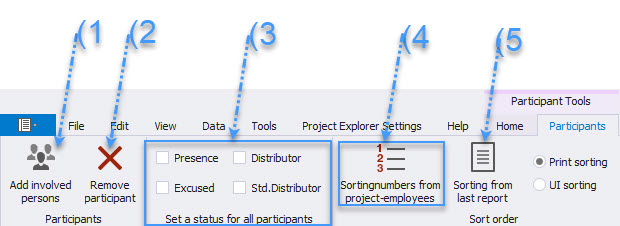
*  * The following actions are simplified in the menu bar:
* Affected project partners, e.g., those entered as responsible for a point, can be added to the distribution list _(1)_.
* Remove selected participants _(2)_.
* The status for all participants can be defined with one click _(3)_.
* Adopt sorting from the project address book _(4)_.
* Adopt sorting from the last report _(5)_.
* The following actions are simplified in the menu bar:
* Affected project partners, e.g., those entered as responsible for a point, can be added to the distribution list _(1)_.
* Remove selected participants _(2)_.
* The status for all participants can be defined with one click _(3)_.
* Adopt sorting from the project address book _(4)_.
* Adopt sorting from the last report _(5)_.